Showing posts with label Personal Backup Appliance. Show all posts

Friday, February 16, 2007

Personal Backup Appliance Local Mode User Guide

This is user guide for using Local Mode in PBA, a new feature in version 1.1.0. Local Mode can backup and restore your hard disk without connecting to a PBA server. Instead, backups are stored on a locally mounted volume which could be another local partition or a network volume. The addition of Local Mode makes the PBA client a stand-alone tool.

Getting the client

Download the PBA Client CD ISO here. You can also download the client from a PBA Server.
Burn the PBA Client ISO to a CD.

Running the PBA Client

Boot up the PBA Client CD on the system or VM that you want to backup. You might need to go to your computer's BIOS screen and change the boot order to boot from CD first. It will also be helpful if your network uses DHCP to assign IP addresses. After the system boots up, you'll see a screen that looks like this:
To use Local Mode, type 'local' and press [Enter].


Local Mode Backup

Use the arrow keys to select 'Backup Hard Disk (local)' from the menu and press [Enter].

In this example, I will be backing up to a windows share on my network, but you can use another local partition, an NFS partition, or whatever else you can feed to the mount command.

There are some fields that need to be filled out.

Target Path:
The Target Path is the path where the file will be saved to. If it's another volume as in this example, the Target Path is also the mount point for the volume. If the directory doesn't exist, the script will create it. In my example, the Target Path is '/root/tmp.'

Backup Filename:
The Backup Filename is the name of your backup. In my example above, the Backup Filename is 'ntfs-test.'

Mount Command:
The Mount Command is the full mount command (including switches and arguments) to mount a certain volume, local or remote, to your mount point, your Target Path. The script will automatically mount using this command and run umount when it finishes. If the volume has already been mounted prior to running PBA, you can leave this field blank. In my example above, the Mount Command is:
mount -t smbfs -o username=vmware,password=vmware //192.168.0.131/data/backup /root/tmp

Now it's your turn. Enter in values in the fields that are appropriate for your configuration. When the backup is finished, you will get a message indicating the the backup was successfully completed.

Local Mode Restore

To restore the disk in Local Mode, at the main menu, use the arrow keys to select 'Restore Hard Disk (local)' from the menu and press [Enter]. You will see a screen like this.


You'll need to fill out some fields.


Target Path:
The Target Path is the path where the saved backup is located. In my example, the Target Path is '/root/tmp.'

Mount Command:
The Mount Command field is the same as the Mount Command field for backup. See above.

Now it's your turn. Enter in values in the fields that are appropriate for your configuration. When the restore is finished, you will get a message indicating the the restore was successfully completed.

-> Discuss this article on our Discussion Forums

Saturday, January 27, 2007

Personal Backup Appliance Getting Started

This is a guide to using the Personal Backup Appliance to backup and restore your hard disk. The Personal Backup Appliance is an open source alternative to Ghost server. The Personal Backup Appliance, or PBA for short, is distributed as a VMware Virtual Appliance. Personal Backup Appliance can backup or restore your entire hard disk drive in just 3 steps. Personal Backup Appliance can be used in either PBA Mode or in Local Mode. In PBA Mode, the PBA Client is connected to a PBA Server and backups are written to the PBA Server. In Local Mode, no PBA Server is needed, but you do need to provide more information to mount a volume for storing backups. This walk-through will cover PBA Mode only.

PBA Mode: Server Setup

1. Download PBA 1.1.0
2. Unzip Personal-Backup-Appliance-1.1.0-vm.zip
3. Open the .vmx file using VMware Player or VMware Server.

After the VM boots up, you'll see a screen like this:
Please take note of the PBA's IP Address and the URL that's displayed. You'll need to use it later. Login. The login is vmware. The password is vmware.
IMPORTANT: The first thing you should do after booting up is update to 1.1.0-1 using the patch. 1.1.0-1 fixes a bug in Local Mode. To patch to 1.1.0-1, run these commands on the PBA VM. This is a temporary requirement in lieu of the next release.
# cd /home/vmware
# wget http://downloads.sourceforge.net/pba-vm/pba-patch_to_1.1.0-1.zip
# unzip pba-patch_to_1.1.0-1.zip
# sh pba-patch_to_1.1.0-1.sh

When the patch process is finished, you'll see a screen like this:

Your PBA Server is all setup and ready to go. The next time you use it, all you need to do is power it on.

PBA Server Console


Version 1.1.0 has a new feature called the PBA Server Console which is started using the 'pba-server-console' command. The PBA Server Console is a management interface for deleting Backups and Creating a Rescue ISO file that you can burn onto a CD or DVD.
PBA Mode: Client Setup

Client Download

First, download the PBA Client ISO from your PBA Server. Go to your PBA's web page using your PBA's URL. On this web page, you'll find instructions on how to download the PBA Client ISO and burn it onto CD.

Here's what the web page will look like. See the download link for the Client ISO image. Download the ISO image and burn it onto a CD.
Running the PBA Client

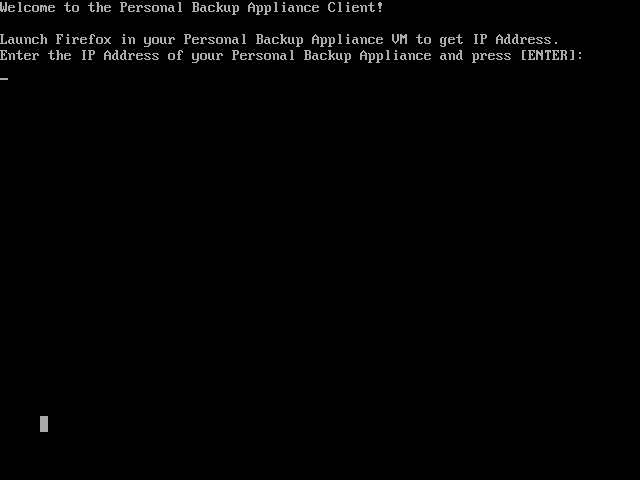
Once you have the client CD, boot it on a computer or VM on your network that you would like to backup. To boot from CD, you may need to change the boot order in your BIOS to boot from cdrom before the hard disk. After the client CD boots, you will be greeted with a prompt asking for the IP address of your Personal Backup Appliance.
Enter in the IP address of your PBA Server, then press [Enter].
PBA Mode: Backup Hard Disk

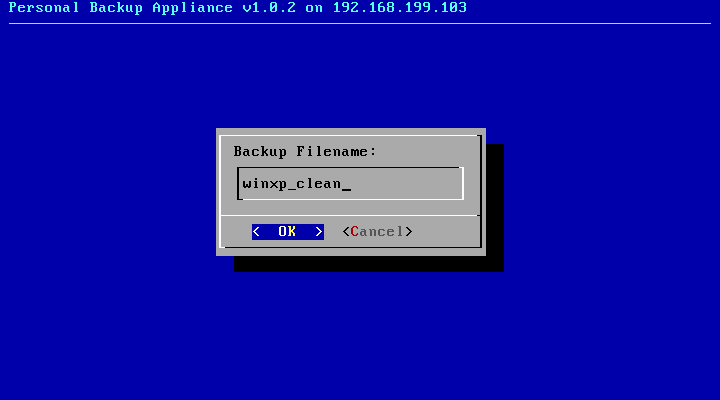
Use the arrow keys to select "Backup Hard Disk" and then press [Enter]. You'll see a prompt that looks like this. Type in a Backup Filename and press [Enter].
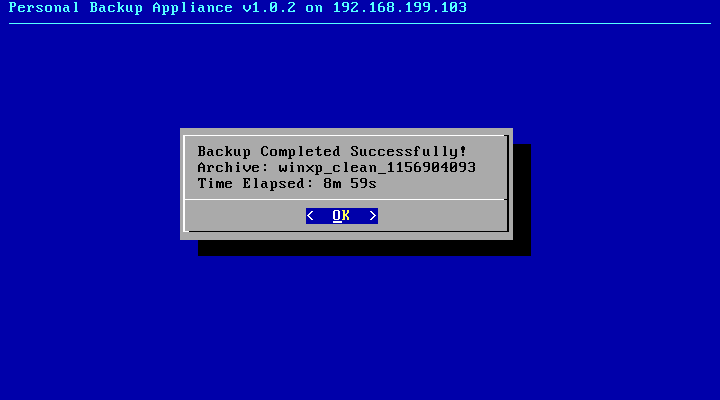
The script will then chug along and backup your hard disk over the network to the PBA Server. The script will backup the MBR, the partition table, and sequentially backup each partition using partimage, ntfsclone, or dd. When the backup finishes, you'll get a screen that looks like this.
PBA Mode: Restore Hard Disk

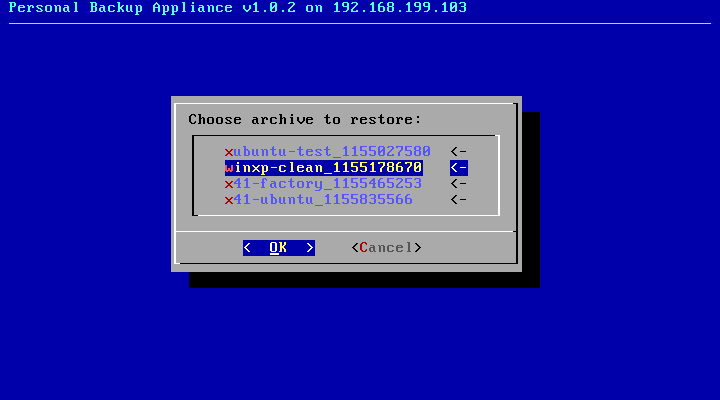
To restore a backup, just boot from the PBA Client CD, and select 'Restore Hard Disk' from the main menu. You'll see a menu of backup archives to restore. Use the arrow keys to choose the backup archive, and then press [Enter] to start the restore.
The script will restore the MBR, the partition table, and sequentially restore each partition using partimage, ntfsclone, or dd. When the restore finishes, you'll get a screen that looks like this.
Select Quit and power off the system when you're done.

Discuss PBA, Get Help, and Share Ideas on the Discussion Forums
Did you Digg this article?

Saturday, January 13, 2007

PBA Patch Release 1.1.0-1

There is bug with local mode in PBA version 1.1.0. It's fixed in patch release 1.1.0-1.

Details and instructions are here:

http://canned-os.hyperclock.com/forums/viewtopic.php?p=24#24

Monday, December 18, 2006

Sunday, December 17, 2006

Personal Backup (VMware) Appliance 1.1.0 Torrent Download

Version 1.1.0 of Personal Backup Appliance is now available as a torrent download. I will be providing a direct download from PBA's sourceforge project page very soon, but I'd like to get the torrent seeded and thriving first. Enjoy.

Download: torrent


Personal-Backup-Appliance-1.1.0-vm.zip
MD5SUM: 0252feb62e9cb79478d3cd517953ed81

login: vmware
password: vmware
OS: Ubuntu Dapper Drake 6.06.1 LTS
Size: 205MB
Licence: GPL
VMware Tools Installed: Yes

List of Changes in 1.1.0
- Dapper Drake VM built from scratch
- X removed
- pba-server-console added
- delete & manage backups
- create rescue ISO from backup
- Local Mode added for backups without the need for PBA server
- Local Mode backs up to locally mounted volume
- e.g. backup to local partition
- Some architectural changes
- new client CD based on Insert 1.3.8a

Wednesday, November 29, 2006

Look for Personal Backup Appliance 1.1.0 on 12/17

I've been busy working on the next release of Personal Backup Appliance. Previously, I mentioned that I would do a test release in early December, but I'm not going to do that anymore. With all the new features, it's complicated to generate a patch release that will apply nicely over 1.0.2. However, I decided on a release date for version 1.1.0. Personal Backup Appliance 1.1.0 will be released on December 17th.

Saturday, November 18, 2006

Working on Personal Backup Appliance 1.1.0

I finally have some time to work on the next release of Personal Backup Appliance. I'd like to thank all of those that sent me encouraging feedback over the past few months. Expect to see some new files to be released in December sometime. Some test files in early December, and hopefully a release by the end of the year. Here's some ramblings about what I've been working on to whet your appetite.

I've been making some architectural changes to the way PBA works. In particular, I've been breaking the functionality from the monolithic script into several command line utilities. This modularization allows me to quickly add new features. For example, I can now backup and restore to a PBA server or to a locally mounted partition on the same drive using a command-line tool, depending on what switches are specified. If time allows, I will create an option in the client GUI to do serverless local partition to file backups. This feature can potentially make the PBA client a stand-alone product that could backup and restore to a mounted volume, either local or remote. In other words, a PBA server would be optional.

I've also been playing around with adding a feature to create a system rescue CD or DVD iso from a PBA backup, similar to what you would get from big computer OEMs like Dell or HP. The iso will be based on the Insert PBA client.

Finally, I intend to move the VM to Dapper Drake. I don't know if I will be able to keep the size small, so the 1.1.0 release may be larger than desired.

I might throw in multicast support also, so people using PBA in large production environments would be able to blast disk images to more than one machine over the network.

That's all for now. I have to attend to my Dapper Drake install.

Monday, September 11, 2006

Torrent Download for Personal Backup Appliance 1.0.2

The Personal Backup Appliance version 1.0.2 is now also available as a torrent download.

Download: torrent


View: Release Notes

Tuesday, August 29, 2006

Hard Disk Backup and Restore using PBA

Hard Disk Backup and Restore Walk-through using the Personal Backup Appliance

[ There's a newer version of this guide ]

Download PBA at: http://pba-vm.sourceforge.net

Discuss PBA, Get Help, and Share Ideas on the Discussion Forums

This is a guide to using the Personal Backup Appliance to backup and restore your hard disk. The Personal Backup Appliance is an open source alternative to Ghost server. The Personal Backup Appliance, or PBA for short, is distributed as a VMware Virtual Appliance. To get started, go to the link above, download the latest release, unzip it, and power it on using VMware Player, a free download from http://www.vmware.com/download/player/
When you first power on the VM, Ubuntu Linux will boot up and automatically launch Firefox with the main information page.
At this point, everything is setup and ready to go on the server-end. The next step is to set things up on the client-end. Please take note of the IP address that's displayed on your VM. It will most likely differ from the IP address in the screenshot. Please also take note of your VM's url.

From another system on the network, go to the PBA VM's web page, download the PBA client CD iso image from the VM, and burn it onto a CD.
Once you have the client CD, boot it on a computer or VM on your network. To boot from CD, you may need to change the boot order in your BIOS to boot from cdrom before the hard disk. After the client CD boots, you will be greeted with a prompt asking for the IP address of your Personal Backup Appliance.
Type the IP address and press [ENTER].
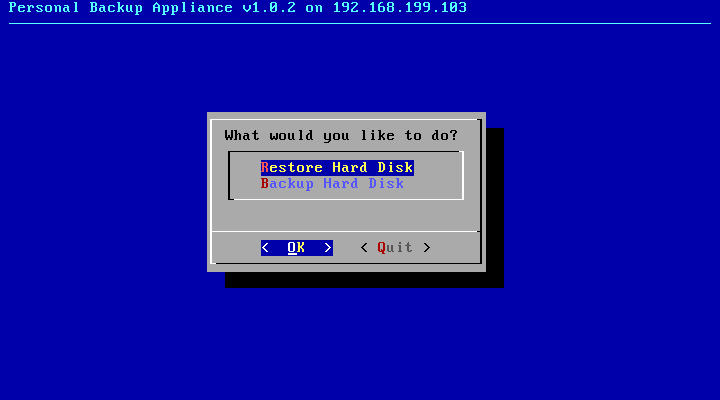
Next, you will presented with a simple menu. Use the arrow keys to navigate and Press Enter to select. Select Backup.
At the Backup Filename: prompt, enter in a POSIX compliant filename. If it isn't compliant, just try again.

When backing up, you will either see a partition image, ntfsclone, or dd progress screen.

When the Backup operation is complete, you will see this screen.
If you select the Restore option from the main menu, you will be presented with a menu to choose the archive that you want to restore.
Choose the archive that you want to restore.

During the restore operation, you will see either see a partition image, ntfsclone, or dd progress screen.

When the Restore operation is completed, you will see this screen.
Select Quit and power off the system.

P2V - Virtualizing an existing OS install using PBA

The Personal Backup Appliance VM can be used to move an existing OS install on real hardware to a VM. The process is popularly called "P2V." "P2V" stands for "Physical to Virtual."

If the physical OS install is Linux, all you need to do is backup the OS install onto the PBA VM, create a new VM and then restore the backup into the new VM. You need to make sure you create a VM with the right storage device, either IDE or SCSI, depending on the configuration of your physical OS install.

If you try the same thing with Windows 2000 or Windows XP, things won't go quite as smoothly. In fact, you will get a scary blue screen.

The blue screen occurs because the VMware scsi drivers are not installed. This is a problem that occurs if you use any off-the-shelf disk copying program (e.g. Ghost, etc.) to dupe a real hard disk to a virtual one. The problem isn't limited to PBA.

To make the blue screen go away, you need to inject the scsi drivers and registry changes into the OS install without booting it up. There are several options, that I know of, for doing this.
  1. VMware has a product called Virtual Machine Importer that's in Beta and can be downloaded. It didn't work for me.
  2. VMware has a commercial product called P2V. I didn't try P2V.
  3. There's a free plugin to BartPE Boot CD called Ultimate-P2V. Using Ultimate-P2V to virtualize a windows XP installation worked like a charm. Follow the instructions on this page and build it: http://www.rtfm-ed.co.uk/?page_id=174
Once you have a working BartPE Boot CD with Ultimate-P2V, you can use the Personal Backup Appliance to virtualize your OS install. You can download the Personal Backup Appliance here: http://pba-vm.sourceforge.net

First, power on the Personal Backup Appliance VM. Let it boot to the Ubuntu desktop.

Next, from the physical system:
  1. Boot from the PBA client CD on the computer that you want to virtualize.
  2. At the main menu, select Backup Disk, and enter a filename.
  3. When backup is complete. Power off the system.
Now, we need to create our VM.
  1. Create a new VM with a SCSI vmdk hard disk. Choose Buslogic.
  2. Configure the VM to boot from the PBA client CD iso, then power on the VM.
  3. At the main menu, select Restore Disk and choose the archive that you just created.
  4. When restore is complete. Reboot the VM.
  5. The VM will blue screen when attempting to boot up. This is expected.
  6. Power off the VM.
  7. Configure the VM to boot from your BartPE Boot CD with Ultimate-P2V.
  8. After BartPE boots up, follow the instructions from the Ultimate-P2V site to inject both the Buslogic and LSIlogic drivers.
  9. Shutdown the VM, and let it boot from the hard disk.
If everything went as expected, your desktop from your physical computer should be booting in a VM.

Friday, August 25, 2006

Help Me Test PBA 1.0.2-RC5

One more release candidate before the final 1.0.2 release. Please help me test if you can.

Here's a download link for the patch that you can use to upgrade your PBA VM to 1.0.2-RC5.

Please see my previous posts or the included readme.txt file for instructions on how to do this. This testing update is only a 2MB download.

There are 3 main changes in RC5

- use dd & lzop instead of zsplit for raw partition backup (faster). restore of zsplit archives is still supported.
- fixed restore menu bug when there are no archives to display
- display time elapsed after backup and restore

http://prdownloads.sourceforge.net/pba-vm/pba-1.0.2-rc5.zip?download

Tuesday, August 15, 2006

PBA 1.0.2 - Release Candidate #4

Another release candidate for PBA 1.0.2, release candidate #4. 1.0.2 will be released on 9/1.
The procedure to patch your 1.0.1 installation to 1.0.2-RC4 is the same as with previous release candidates and is described in the readme.txt file in the zip.

http://prdownloads.sourceforge.net/pba-vm/pba-1.0.2-rc4.zip?download

In addition to all the changes/fixes from previous release candidates, 1.0.2-RC4 fixes the following:

1. Fixed some potential bootup problems when restoring to a blank hard disk. Some users reported bootup issues when restoring to a blank, zeroed-out hard disk. I believe this issue was due to the undocumented use of the area between the MBR and the start of the first partition. The bootup problem on my notebook went away after I made a change to backup and restore this region. I also hope that this will do away with the need to run fixmbr from the Windows recovery console in scenarios where it was required.

2. added swap file label for centos (mkswap -L)

Please help me test. there will likely be an RC5 in about a week to address other issues, and after that I guess I should refrain from doing anything major to allow for enough time to test before 1.0.2 is cut on 9/1.

Wednesday, August 09, 2006

Help me test PBA 1.0.2-Release Candidate #3

I didn't intend to do another release candidate so quickly, but I spent a bunch of time on PBA over the last couple of days and overhauled the user interface on the client end, and fixed a few corner case bugs.

Screenshots of new interface:
http://sourceforge.net/project/screenshots.php?group_id=171414

Here's a download link for the patch to v1.0.2 Release Candidate #3.

http://prdownloads.sourceforge.net/pba-vm/pba-1.0.2-rc3.zip?download

The procedure is the same as with RC2 and is documented in the readme.txt file in the zip file.

Enjoy.

Monday, August 07, 2006

Personal Backup Appliance 1.0.2-Release Candidate #2

Okay, let's try something new.

I'm getting ready to release 1.0.2 on 9/1, but I'd like to iron out as many bugs as I can, so here's a release candidate so that you can help me test. The files are released as a patch to your existing 1.0.1 PBA VM. It's only about 2MB. The readme.txt file in the zip archive has instructions on how to patch your existing 1.0.1 VM to 1.0.2-RC2. You can download pba-1.0.2-rc2.zip directly from the VM, or you can transfer the file manually by FTP or via the windows shares.

http://prdownloads.sourceforge.net/pba-vm/pba-1.0.2-rc2.zip?download

Send feedback, comments, bug reports to rxhui@users.sourceforge.net

List of Changes in 1.0.2-RC2
- fixed duplicate entries when there's more than one partition
- fixed Grub boot error by adding fixgrub Grub re-install script
- moved some startup files to /etc/rc.local
- no need to run 'sudo /home/vmware/bin/data.sh' for hdd upgrade
- add warning if drive does not match original
- few modifications to improve backing up and restoring of BSD filesystems

Wednesday, August 02, 2006

Personal Backup Appliance 1.0.1 Issues

With the release of PBA 1.0.1 , the filesystem support has improved a lot. Most notably, there is better NTFS support and support for LVM. But I after some more exhaustive testing, I found some issues. These issues do not break the core functionality of PBA, but they sure annoy me.

1. Windows backups and restores work great, but linux backups and restores on drives with Grub don't do so well. I believe this problem was present in version 1.0.0 also. I already have this fixed in my sandbox, so the next release will have it. See my previous post for a work-around that you can use in the meantime.
2. It appears that you will have additional menu entries for the same item if your drive has more than one partition. While this doesn't break functionality, it is not pretty. This blatant bug in the script will be fixed in the next release also.

Rather than roll out a release right away, I'm compiling a list of other issues to fix before I release 1.0.2 on 9/1. Let me know if you're seeing problems not listed here.

Monday, July 31, 2006

Grub may be broken after PBA restore

Windows backups and restores seem to be working well, but Linux restores may not boot up if the boot loader is Grub for reasons that I do not understand yet. Lilo does not appear to be affected. The error you will see is Grub getting stuck on boot. Only "Grub__" will be displayed. The good news is that with version 1.0.1 of the client, you can make your disk bootable by re-installing Grub. Here's how.

After the restore completes, quit out of the PBA client to the console. If you already restored your hard disk, you can boot up the PBA client again, and exit the client to the console. For these instructions, I will assume that your only linux is /dev/hda1 and you do not have a separate partition for /boot. If you have a separate partition /boot, mount it instead of the partition mounted to /.

Run these commands:
# mkdir /root/tmpmnt
# mount /dev/hda1 /root/tmpmnt
# grub-install --root-directory=/root/tmpmnt /dev/hda
# umount /root/tmpmnt
Reboot the system, and eject the PBA client CD to boot from your hard disk.

I will do this automatically in the next release of PBA.

Sunday, July 30, 2006

Personal Backup (VMware) Appliance v1.0.1 Released!

Version 1.0.1 of the Personal Backup Appliance has been released and is available for download!

Here's a list of changes:
  • ntfsclone is used for NTFS partitions.
  • partimage is used for partimage supported partitions except for NTFS
  • Device Image is used for partitions not supported by ntfsclone or partimage
  • added lzop compression for ntfsclone backups. faster than gzip.
  • removed a bunch of unnecessary packages to reduce VM size
  • PBA Client CD (pba-client-1.0.1.iso) is now based on INSERT Linux.
  • removed 'dsl-2-4' backup that was included in the 1.0.0 release
  • if more that one hard disk is found, user will be asked to choose one.
  • miscellaneous bug fixes
Personal Backup (VMware) Appliance v1.0.1
http://pba-vm.sourceforge.net

login: vmware
password: vmware
OS: Ubuntu 5.10
Size: ~300MB
License: GPL
VMware Tools Installed: Yes

DOWNLOAD: torrent
MD5SUM: 6dfafecae461b7a25067b6d456217ccb

Description:
The Personal Backup Appliance is a VMware virtual appliance that provides -TWO- crucial backup functions: (1) Hard Disk Backup, Clone & Restore (2) Simple NAS services.