This might interest some of you.
http://www.amahi.org
A PXE-enabled version of Personal Backup Appliance is integrated in the Amahi home server product.
I've been running an Amahi home server on real hardware in my home for a few months, and it's what I use exclusively for backups.
Here are some links to get started. The Amahi Project is actively seeking volunteers to deploy the Amahi into their home.
http://wiki.amahi.org/index.php/Fedora-7
Wednesday, July 18, 2007


Friday, June 08, 2007
PXE, NFS, blah blah
I'm working on a new version of PBA that is more centered around the PXE boot client. The PXE boot client will be the default client, and NFS will be default protocol for transfer. I'm not sure if this is the best thing to do, but from a programming point of view, this greatly simplifies the code.
Tuesday, May 08, 2007
Personal Backup Appliance 1.1.1-RC1
Download it here:
http://downloads.sourceforge.net/pba-vm/Personal-Backup-Appliance-1.1.1-vm-RC1.zip
It's a release candidate. I'd like people to test it before I make it a real release. There's a PXE server, and multicast is supported. Both are accessed through pba-server-console. By default the PXE server is not started.
The kernel served by the PXE server isn't the same as that served by the client CD. It doesn't support SCSI storage and you may have trouble with it on legacy-free systems. Other than that it works. I tested it using VMware machines with IDE storage.
If you have a lab of machines, as many as you can round up, then please help test the multicast feature with different filesystems (NTFS, ext3, LVM). I am uncertain of its robustness.
http://downloads.sourceforge.net/pba-vm/Personal-Backup-Appliance-1.1.1-vm-RC1.zip
It's a release candidate. I'd like people to test it before I make it a real release. There's a PXE server, and multicast is supported. Both are accessed through pba-server-console. By default the PXE server is not started.
The kernel served by the PXE server isn't the same as that served by the client CD. It doesn't support SCSI storage and you may have trouble with it on legacy-free systems. Other than that it works. I tested it using VMware machines with IDE storage.
If you have a lab of machines, as many as you can round up, then please help test the multicast feature with different filesystems (NTFS, ext3, LVM). I am uncertain of its robustness.
Thursday, May 03, 2007
Good news...I have multicast working
Good news...I have multicast working now on my test version of PBA.
A few notes:
A few notes:
- I need to do lots of testing, and I could use some help. If you have a population of machines in a lab environment, say around ten or so, that you can dedicate to helping me test pxe and multicast, send me an email at rxhui at users dot sourceforge dot net. Please also let me know what operating systems/filesystems you can help test.
- For the time being, I'm dropping multicast support of zsplit/unzsplit archives. The only reason you may have zsplit/unzsplit archives is if you created the backup with version 1.0.2. Versions after 1.0.2 use dd for raw backup. I don't think this should be a problem for most people.
- Does anyone want to help with documentation? Not sure exactly what yet, but if someone is interested and motivated, I'm sure I can identify something relevant in PBA that needs better documentation.
Friday, April 20, 2007
PBA 1.1.1 is almost ready for release
I've been making some progress towards the release of PBA 1.1.1. PXE support is done, and I'm working on multicast support. PXE support is cool. Clients automatically connect to the PBA server and boot straight into the PBA Client Menu--No need to enter in an IP address.
Look for the new release soon, probably within a month's time.
Look for the new release soon, probably within a month's time.
Sunday, April 01, 2007
VirtualBox
I use automatix2 on my Ubuntu machines, and today I noticed something that I didn't notice before--There was a checkbox for something called Virtual Box under the Virtualization section. After doing some research, it looks like it's based on Qemu. When I have time, I will try it.
http://www.virtualbox.org/
http://www.virtualbox.org/
Saturday, March 03, 2007
Convert Physical Machine to Virtual Machine
You can use VMware's Converter now to convert physical machine to a virtual machine. At first glance, it looks like it'll only work with Windows. As far as I can tell, for Linux installations, I think you can still use Personal Backup Appliance to convert a physical machine to a virtual one, though it isn't as slick as VMware's Converter.
http://www.vmware.com/products/converter/
http://www.vmware.com/products/converter/
Friday, February 16, 2007
Personal Backup Appliance Local Mode User Guide
This is user guide for using Local Mode in PBA, a new feature in version 1.1.0. Local Mode can backup and restore your hard disk without connecting to a PBA server. Instead, backups are stored on a locally mounted volume which could be another local partition or a network volume. The addition of Local Mode makes the PBA client a stand-alone tool.
Getting the client
Download the PBA Client CD ISO here. You can also download the client from a PBA Server.
Burn the PBA Client ISO to a CD.
Running the PBA Client
Boot up the PBA Client CD on the system or VM that you want to backup. You might need to go to your computer's BIOS screen and change the boot order to boot from CD first. It will also be helpful if your network uses DHCP to assign IP addresses. After the system boots up, you'll see a screen that looks like this:
 To use Local Mode, type 'local' and press [Enter].

Local Mode Backup
Use the arrow keys to select 'Backup Hard Disk (local)' from the menu and press [Enter].

In this example, I will be backing up to a windows share on my network, but you can use another local partition, an NFS partition, or whatever else you can feed to the mount command.
There are some fields that need to be filled out.
Target Path:
The Target Path is the path where the file will be saved to. If it's another volume as in this example, the Target Path is also the mount point for the volume. If the directory doesn't exist, the script will create it. In my example, the Target Path is '/root/tmp.'
Backup Filename:
The Backup Filename is the name of your backup. In my example above, the Backup Filename is 'ntfs-test.'
Mount Command:
The Mount Command is the full mount command (including switches and arguments) to mount a certain volume, local or remote, to your mount point, your Target Path. The script will automatically mount using this command and run umount when it finishes. If the volume has already been mounted prior to running PBA, you can leave this field blank. In my example above, the Mount Command is:
Now it's your turn. Enter in values in the fields that are appropriate for your configuration. When the backup is finished, you will get a message indicating the the backup was successfully completed.
Local Mode Restore
To restore the disk in Local Mode, at the main menu, use the arrow keys to select 'Restore Hard Disk (local)' from the menu and press [Enter]. You will see a screen like this.

You'll need to fill out some fields.
Target Path:
The Target Path is the path where the saved backup is located. In my example, the Target Path is '/root/tmp.'
Mount Command:
The Mount Command field is the same as the Mount Command field for backup. See above.
Now it's your turn. Enter in values in the fields that are appropriate for your configuration. When the restore is finished, you will get a message indicating the the restore was successfully completed.
-> Discuss this article on our Discussion Forums
Getting the client
Download the PBA Client CD ISO here. You can also download the client from a PBA Server.
Burn the PBA Client ISO to a CD.
Running the PBA Client
Boot up the PBA Client CD on the system or VM that you want to backup. You might need to go to your computer's BIOS screen and change the boot order to boot from CD first. It will also be helpful if your network uses DHCP to assign IP addresses. After the system boots up, you'll see a screen that looks like this:
 To use Local Mode, type 'local' and press [Enter].

Local Mode Backup
Use the arrow keys to select 'Backup Hard Disk (local)' from the menu and press [Enter].

In this example, I will be backing up to a windows share on my network, but you can use another local partition, an NFS partition, or whatever else you can feed to the mount command.
There are some fields that need to be filled out.
Target Path:
The Target Path is the path where the file will be saved to. If it's another volume as in this example, the Target Path is also the mount point for the volume. If the directory doesn't exist, the script will create it. In my example, the Target Path is '/root/tmp.'
Backup Filename:
The Backup Filename is the name of your backup. In my example above, the Backup Filename is 'ntfs-test.'
Mount Command:
The Mount Command is the full mount command (including switches and arguments) to mount a certain volume, local or remote, to your mount point, your Target Path. The script will automatically mount using this command and run umount when it finishes. If the volume has already been mounted prior to running PBA, you can leave this field blank. In my example above, the Mount Command is:
mount -t smbfs -o username=vmware,password=vmware //192.168.0.131/data/backup /root/tmpNow it's your turn. Enter in values in the fields that are appropriate for your configuration. When the backup is finished, you will get a message indicating the the backup was successfully completed.
Local Mode Restore
To restore the disk in Local Mode, at the main menu, use the arrow keys to select 'Restore Hard Disk (local)' from the menu and press [Enter]. You will see a screen like this.

You'll need to fill out some fields.
Target Path:
The Target Path is the path where the saved backup is located. In my example, the Target Path is '/root/tmp.'
Mount Command:
The Mount Command field is the same as the Mount Command field for backup. See above.
Now it's your turn. Enter in values in the fields that are appropriate for your configuration. When the restore is finished, you will get a message indicating the the restore was successfully completed.
-> Discuss this article on our Discussion Forums
Wednesday, February 07, 2007
Sabayon Linux VM
I just took a look at Distrowatch.com and it looks like there's a new distro there called Sabayon Linux. Sabayon is based on Gentoo. Sounds interesting.
A Sabayon VM that some other person created is available from VMware's site.
http://www.vmware.com/vmtn/appliances/directory/657
A Sabayon VM that some other person created is available from VMware's site.
http://www.vmware.com/vmtn/appliances/directory/657
Wednesday, January 31, 2007
Ubuntu 6.10 Edgy Eft VM
There's a new Ubuntu VM based on Edgy Eft available from VMware's site. I 've been using Edgy Eft a lot and I really like the improvements to bootup time. Here's a link for direct download:
Download
Download
Saturday, January 27, 2007
Personal Backup Appliance Getting Started
This is a guide to using the Personal Backup Appliance to backup and restore your hard disk. The Personal Backup Appliance is an open source alternative to Ghost server. The Personal Backup Appliance, or PBA for short, is distributed as a VMware Virtual Appliance. Personal Backup Appliance can backup or restore your entire hard disk drive in just 3 steps. Personal Backup Appliance can be used in either PBA Mode or in Local Mode. In PBA Mode, the PBA Client is connected to a PBA Server and backups are written to the PBA Server. In Local Mode, no PBA Server is needed, but you do need to provide more information to mount a volume for storing backups. This walk-through will cover PBA Mode only.
PBA Mode: Server Setup
1. Download PBA 1.1.0
2. Unzip Personal-Backup-Appliance-1.1.0-vm.zip
3. Open the .vmx file using VMware Player or VMware Server.
After the VM boots up, you'll see a screen like this:
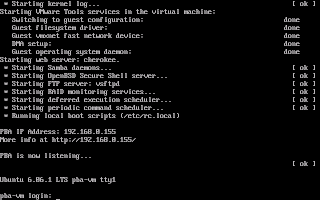 Please take note of the PBA's IP Address and the URL that's displayed. You'll need to use it later. Login. The login is vmware. The password is vmware.
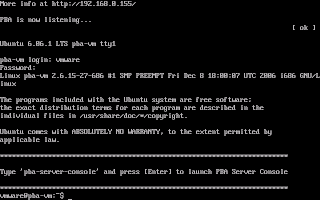 IMPORTANT: The first thing you should do after booting up is update to 1.1.0-1 using the patch. 1.1.0-1 fixes a bug in Local Mode. To patch to 1.1.0-1, run these commands on the PBA VM. This is a temporary requirement in lieu of the next release.
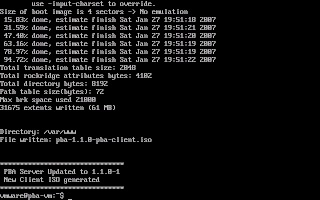 Your PBA Server is all setup and ready to go. The next time you use it, all you need to do is power it on.
PBA Server Console
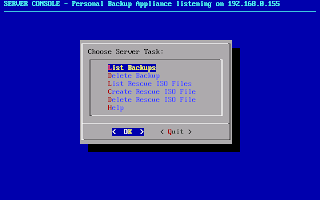
Version 1.1.0 has a new feature called the PBA Server Console which is started using the 'pba-server-console' command. The PBA Server Console is a management interface for deleting Backups and Creating a Rescue ISO file that you can burn onto a CD or DVD.
 PBA Mode: Client Setup
Client Download
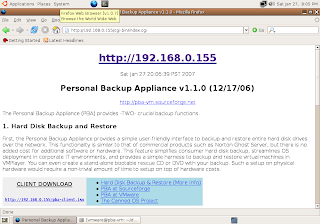
First, download the PBA Client ISO from your PBA Server. Go to your PBA's web page using your PBA's URL. On this web page, you'll find instructions on how to download the PBA Client ISO and burn it onto CD.
Here's what the web page will look like. See the download link for the Client ISO image. Download the ISO image and burn it onto a CD.
 Running the PBA Client
Once you have the client CD, boot it on a computer or VM on your network that you would like to backup. To boot from CD, you may need to change the boot order in your BIOS to boot from cdrom before the hard disk. After the client CD boots, you will be greeted with a prompt asking for the IP address of your Personal Backup Appliance.
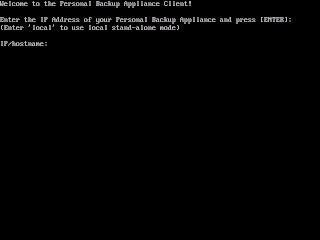 Enter in the IP address of your PBA Server, then press [Enter].
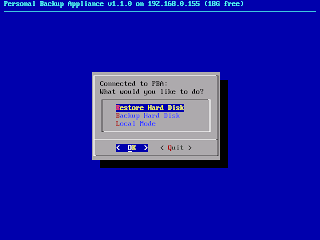 PBA Mode: Backup Hard Disk
Use the arrow keys to select "Backup Hard Disk" and then press [Enter]. You'll see a prompt that looks like this. Type in a Backup Filename and press [Enter].
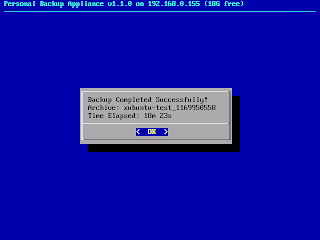
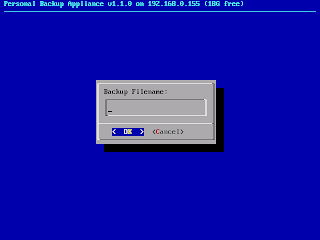 The script will then chug along and backup your hard disk over the network to the PBA Server. The script will backup the MBR, the partition table, and sequentially backup each partition using partimage, ntfsclone, or dd. When the backup finishes, you'll get a screen that looks like this.
 PBA Mode: Restore Hard Disk
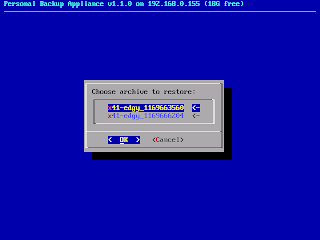
To restore a backup, just boot from the PBA Client CD, and select 'Restore Hard Disk' from the main menu. You'll see a menu of backup archives to restore. Use the arrow keys to choose the backup archive, and then press [Enter] to start the restore.
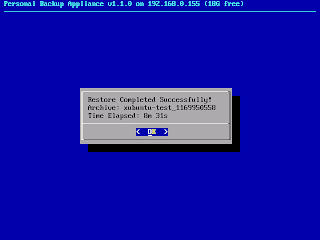
 The script will restore the MBR, the partition table, and sequentially restore each partition using partimage, ntfsclone, or dd. When the restore finishes, you'll get a screen that looks like this.
 Select Quit and power off the system when you're done.
Discuss PBA, Get Help, and Share Ideas on the Discussion Forums
Did you Digg this article?
PBA Mode: Server Setup
1. Download PBA 1.1.0
2. Unzip Personal-Backup-Appliance-1.1.0-vm.zip
3. Open the .vmx file using VMware Player or VMware Server.
After the VM boots up, you'll see a screen like this:
 Please take note of the PBA's IP Address and the URL that's displayed. You'll need to use it later. Login. The login is vmware. The password is vmware.
 IMPORTANT: The first thing you should do after booting up is update to 1.1.0-1 using the patch. 1.1.0-1 fixes a bug in Local Mode. To patch to 1.1.0-1, run these commands on the PBA VM. This is a temporary requirement in lieu of the next release.
When the patch process is finished, you'll see a screen like this:# cd /home/vmware
# wget http://downloads.sourceforge.net/pba-vm/pba-patch_to_1.1.0-1.zip
# unzip pba-patch_to_1.1.0-1.zip
# sh pba-patch_to_1.1.0-1.sh
 Your PBA Server is all setup and ready to go. The next time you use it, all you need to do is power it on.
PBA Server Console
Version 1.1.0 has a new feature called the PBA Server Console which is started using the 'pba-server-console' command. The PBA Server Console is a management interface for deleting Backups and Creating a Rescue ISO file that you can burn onto a CD or DVD.
 PBA Mode: Client Setup
Client Download
First, download the PBA Client ISO from your PBA Server. Go to your PBA's web page using your PBA's URL. On this web page, you'll find instructions on how to download the PBA Client ISO and burn it onto CD.
Here's what the web page will look like. See the download link for the Client ISO image. Download the ISO image and burn it onto a CD.
 Running the PBA Client
Once you have the client CD, boot it on a computer or VM on your network that you would like to backup. To boot from CD, you may need to change the boot order in your BIOS to boot from cdrom before the hard disk. After the client CD boots, you will be greeted with a prompt asking for the IP address of your Personal Backup Appliance.
 Enter in the IP address of your PBA Server, then press [Enter].
 PBA Mode: Backup Hard Disk
Use the arrow keys to select "Backup Hard Disk" and then press [Enter]. You'll see a prompt that looks like this. Type in a Backup Filename and press [Enter].
 The script will then chug along and backup your hard disk over the network to the PBA Server. The script will backup the MBR, the partition table, and sequentially backup each partition using partimage, ntfsclone, or dd. When the backup finishes, you'll get a screen that looks like this.
 PBA Mode: Restore Hard Disk
To restore a backup, just boot from the PBA Client CD, and select 'Restore Hard Disk' from the main menu. You'll see a menu of backup archives to restore. Use the arrow keys to choose the backup archive, and then press [Enter] to start the restore.
 The script will restore the MBR, the partition table, and sequentially restore each partition using partimage, ntfsclone, or dd. When the restore finishes, you'll get a screen that looks like this.
 Select Quit and power off the system when you're done.
Discuss PBA, Get Help, and Share Ideas on the Discussion Forums
Did you Digg this article?
Saturday, January 13, 2007
PBA Patch Release 1.1.0-1
There is bug with local mode in PBA version 1.1.0. It's fixed in patch release 1.1.0-1.
Details and instructions are here:
http://canned-os.hyperclock.com/forums/viewtopic.php?p=24#24
Details and instructions are here:
http://canned-os.hyperclock.com/forums/viewtopic.php?p=24#24
Thursday, January 04, 2007
Visit our New Discussion Forums
Happy New Year!
Please visit our new Discussion Forums for the the Canned OS Project (link on the right navbar).
The new format does require you to register, but managing my own Discussion Forums allows me to separate topics into categories and moderate discussions much more effectively, and over time, your posts and contributions will become the basis for a body of documentation for Personal Backup Appliance and our other releases.
I was finding it cumbersome to effectively respond to comments posted on this blog, postings on the PBA thread on the VMware site, and postings on the PBA sourceforge site, so I took down the sourceforge PBA forums, and created this single forum as the central place for help and discussion on releases from The Canned OS Project. I will still do my best to answer questions posted in these other areas, but you will get the fastest response on our Discussion Forums.
Please visit our new Discussion Forums for the the Canned OS Project (link on the right navbar).
The new format does require you to register, but managing my own Discussion Forums allows me to separate topics into categories and moderate discussions much more effectively, and over time, your posts and contributions will become the basis for a body of documentation for Personal Backup Appliance and our other releases.
I was finding it cumbersome to effectively respond to comments posted on this blog, postings on the PBA thread on the VMware site, and postings on the PBA sourceforge site, so I took down the sourceforge PBA forums, and created this single forum as the central place for help and discussion on releases from The Canned OS Project. I will still do my best to answer questions posted in these other areas, but you will get the fastest response on our Discussion Forums.
Monday, December 18, 2006
Personal Backup Appliance 1.1.0 Direct Download
Direct download for Personal Backup Appliance 1.1.0 is now available.
See previous post about the torrent download for all the relevant details about this release.
See previous post about the torrent download for all the relevant details about this release.
Sunday, December 17, 2006
Personal Backup (VMware) Appliance 1.1.0 Torrent Download
Version 1.1.0 of Personal Backup Appliance is now available as a torrent download. I will be providing a direct download from PBA's sourceforge project page very soon, but I'd like to get the torrent seeded and thriving first. Enjoy.
Download: torrent
Personal-Backup-Appliance-1.1.0-vm.zip
MD5SUM: 0252feb62e9cb79478d3cd517953ed81
login: vmware
password: vmware
OS: Ubuntu Dapper Drake 6.06.1 LTS
Size: 205MB
Licence: GPL
VMware Tools Installed: Yes
List of Changes in 1.1.0
- Dapper Drake VM built from scratch
- X removed
- pba-server-console added
- delete & manage backups
- create rescue ISO from backup
- Local Mode added for backups without the need for PBA server
- Local Mode backs up to locally mounted volume
- e.g. backup to local partition
- Some architectural changes
- new client CD based on Insert 1.3.8a
Download: torrent
Personal-Backup-Appliance-1.1.0-vm.zip
MD5SUM: 0252feb62e9cb79478d3cd517953ed81
login: vmware
password: vmware
OS: Ubuntu Dapper Drake 6.06.1 LTS
Size: 205MB
Licence: GPL
VMware Tools Installed: Yes
List of Changes in 1.1.0
- Dapper Drake VM built from scratch
- X removed
- pba-server-console added
- delete & manage backups
- create rescue ISO from backup
- Local Mode added for backups without the need for PBA server
- Local Mode backs up to locally mounted volume
- e.g. backup to local partition
- Some architectural changes
- new client CD based on Insert 1.3.8a
Tuesday, December 12, 2006


Wednesday, December 06, 2006
Xubuntu Dapper Drake 6.0.6.1 VMware Virtual Appliance version 1.0.2
Discuss this Xubuntu VM, Get Help, and Share Ideas on the Discussion Forums.
Hey there, while working on the next release of PBA, I took a break and did something else. I just released a new version of the Xubuntu Dapper Drake VM. Packages are updated, the kernel has been updated to the latest 686 kernel (previously it was a 386 kernel), VMware tools are updated, and the size has been slightly reduced. I may create an Edgy Eft 6.10 version at some point if I sense that people would be interested in it.
Here's all the relevant details and a torrent link for download.
Current Version: 1.0.2
Release Date: 12/6/06

OS: Xubuntu 6.06.1 LTS
Size: 458MB
VMware Tools: Installed
login: vmware
password: vmware
Download: torrent
Description:
Xubuntu is a complete GNU/Linux based system with an Ubuntu base. It's lighter, and more efficient than Ubuntu with GNOME or KDE, since it uses the Xfce Desktop environment, which makes it ideal for old or low-end machines, as well as thin-client networks.
Hey there, while working on the next release of PBA, I took a break and did something else. I just released a new version of the Xubuntu Dapper Drake VM. Packages are updated, the kernel has been updated to the latest 686 kernel (previously it was a 386 kernel), VMware tools are updated, and the size has been slightly reduced. I may create an Edgy Eft 6.10 version at some point if I sense that people would be interested in it.
Here's all the relevant details and a torrent link for download.
Current Version: 1.0.2
Release Date: 12/6/06

OS: Xubuntu 6.06.1 LTS
Size: 458MB
VMware Tools: Installed
login: vmware
password: vmware
Download: torrent
Description:
Xubuntu is a complete GNU/Linux based system with an Ubuntu base. It's lighter, and more efficient than Ubuntu with GNOME or KDE, since it uses the Xfce Desktop environment, which makes it ideal for old or low-end machines, as well as thin-client networks.
Monday, December 04, 2006
Internet Explorer 6 Application Compatibility VPC Image
I don't plan on releasing any Virtual PC Appliances anytime soon, but for what it's worth, this caught my eye. Microsoft has apparently released a Virtual PC Appliance that includes a pre-activated Windows XP SP2, IE6 and the IE7 Readiness Toolkit. Microsoft is advertising this as a way to run IE6 and IE7 on the same machine simultaneously. The part that's surprising is that they are distributing a free trial copy of Windows XP with the machine. The Windows XP installation will expire in April 2007.
- Download: Virtual PC 2004 SP1
- Download: Internet Explorer 6 Application Compatibility VPC Image.
Wednesday, November 29, 2006
Look for Personal Backup Appliance 1.1.0 on 12/17
I've been busy working on the next release of Personal Backup Appliance. Previously, I mentioned that I would do a test release in early December, but I'm not going to do that anymore. With all the new features, it's complicated to generate a patch release that will apply nicely over 1.0.2. However, I decided on a release date for version 1.1.0. Personal Backup Appliance 1.1.0 will be released on December 17th.
Saturday, November 18, 2006
Working on Personal Backup Appliance 1.1.0
I finally have some time to work on the next release of Personal Backup Appliance. I'd like to thank all of those that sent me encouraging feedback over the past few months. Expect to see some new files to be released in December sometime. Some test files in early December, and hopefully a release by the end of the year. Here's some ramblings about what I've been working on to whet your appetite.
I've been making some architectural changes to the way PBA works. In particular, I've been breaking the functionality from the monolithic script into several command line utilities. This modularization allows me to quickly add new features. For example, I can now backup and restore to a PBA server or to a locally mounted partition on the same drive using a command-line tool, depending on what switches are specified. If time allows, I will create an option in the client GUI to do serverless local partition to file backups. This feature can potentially make the PBA client a stand-alone product that could backup and restore to a mounted volume, either local or remote. In other words, a PBA server would be optional.
I've also been playing around with adding a feature to create a system rescue CD or DVD iso from a PBA backup, similar to what you would get from big computer OEMs like Dell or HP. The iso will be based on the Insert PBA client.
Finally, I intend to move the VM to Dapper Drake. I don't know if I will be able to keep the size small, so the 1.1.0 release may be larger than desired.
I might throw in multicast support also, so people using PBA in large production environments would be able to blast disk images to more than one machine over the network.
That's all for now. I have to attend to my Dapper Drake install.
I've been making some architectural changes to the way PBA works. In particular, I've been breaking the functionality from the monolithic script into several command line utilities. This modularization allows me to quickly add new features. For example, I can now backup and restore to a PBA server or to a locally mounted partition on the same drive using a command-line tool, depending on what switches are specified. If time allows, I will create an option in the client GUI to do serverless local partition to file backups. This feature can potentially make the PBA client a stand-alone product that could backup and restore to a mounted volume, either local or remote. In other words, a PBA server would be optional.
I've also been playing around with adding a feature to create a system rescue CD or DVD iso from a PBA backup, similar to what you would get from big computer OEMs like Dell or HP. The iso will be based on the Insert PBA client.
Finally, I intend to move the VM to Dapper Drake. I don't know if I will be able to keep the size small, so the 1.1.0 release may be larger than desired.
I might throw in multicast support also, so people using PBA in large production environments would be able to blast disk images to more than one machine over the network.
That's all for now. I have to attend to my Dapper Drake install.
Subscribe to:
Posts (Atom)